# #3 Switching Authentication Method in BookStack
If you choose to use Google authentication, you need to manually switch the authentication method to standard to log in as a local admin and enable user registration. Then turn in back to OIDC.
# 📌 One-Time Setup for Google Authentication
### Follow these steps:
##### **Step 1: Connect to Your EC2 Instance**
1\. Go to the **AWS Console** → **EC2**.
2\. Locate your **BookStack instance** (named something like `bookstack-dev-asg-instance`).
3\. Use **Systems Manager** to connect to the instance. In new window appear, enter in prompt: `sudo su - ec2-user` and hit enter
```bash
sh-5.2$ sudo su - ec2-user
Last login: Wed Feb 26 07:36:32 UTC 2025 on pts/1
Welcome to your EC2 instance!
-----------------------------
Operating System: GNU/Linux
Hostname: ip-172-31-42-121.ec2.internal
Current Date and Time: Wed Feb 26 08:33:35 UTC 2025
```
##### **Step 2: Modify the Authentication Method**
In the **.env** file, change the authentication method from **OIDC** to **Standard** by modifying or adding the following lines:
```yaml
nano bookstack/.env
#AUTH_METHOD="oidc" # comment in or edit exist line
AUTH_METHOD="standard" # or add the new one with value =standard
```
Save and exit the file.
##### **Step 3: Restart BookStack**
Run the following command to restart the BookStack service:
```bash
docker-compose --env-file bookstack/.env -f bookstack/docker-compose.yml up -d
# After a few seconds, you should see:
[+] Running 1/1
✔ Container bookstack Started
```
##### **Step 4: Log in as Admin**
Now, access BookStack through your **AppURL** and log in using the default credentials:
• **Email:** `admin@admin.com`
• **Password:** `password`
##### **Step 5: Enable User Registration**
1\. Click on **Settings** in the top navigation bar.
[](https://wiki.devsecopsinc.io/uploads/images/gallery/2025-03/bookstack-settings.png "bookstack-settings.png")
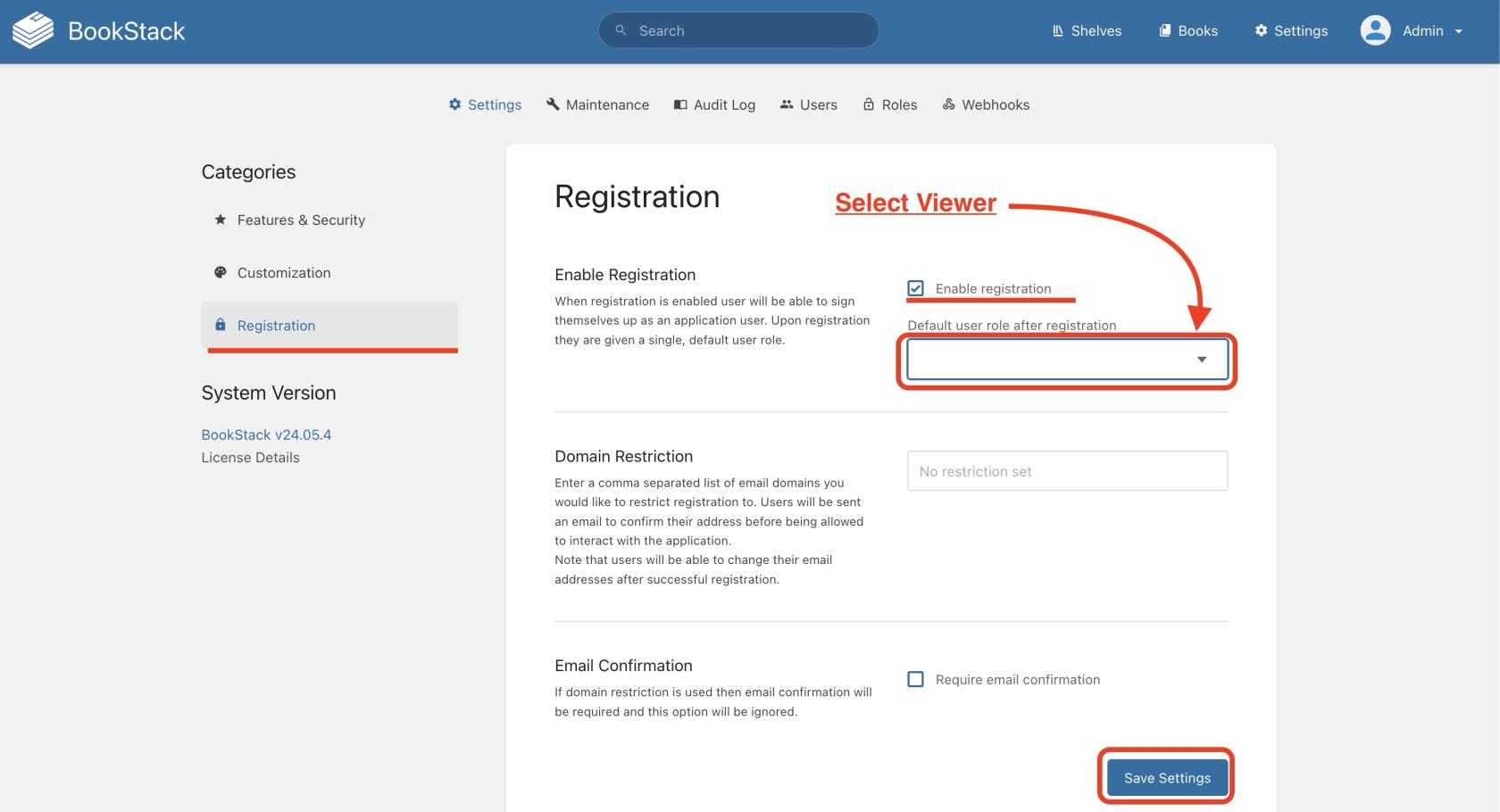
2. Under **Categories**, select **Registration**.
3. Check **Enable Registration**.
4\. In **Default user role after registration**, select **Viewer**.
[](https://wiki.devsecopsinc.io/uploads/images/gallery/2025-03/bookstack-registration.jpeg "bookstack-registration.jpeg")
5. Click **Save Settings**.
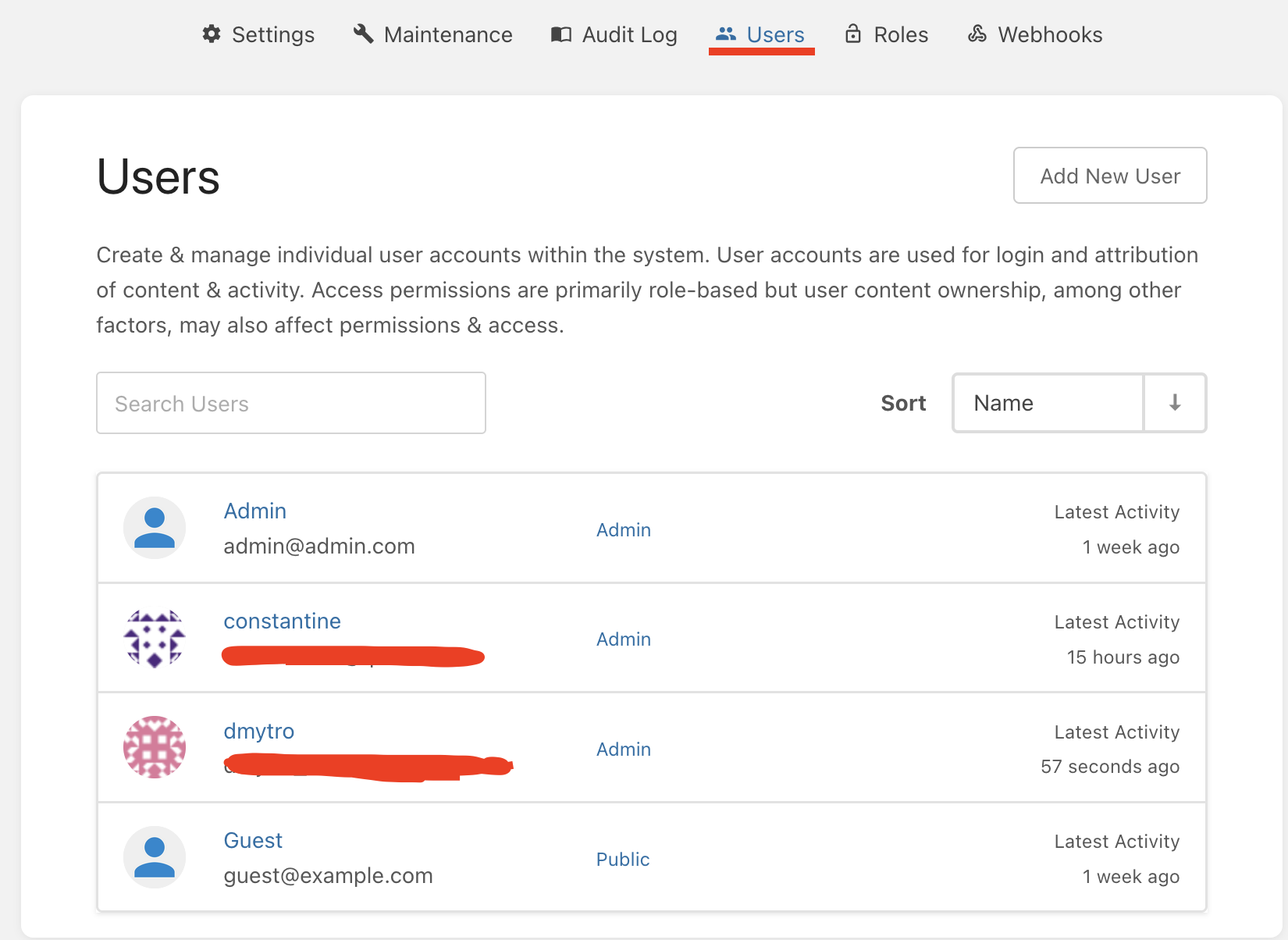
6\. Click on **Users** tab. Choose user which you want to make an admin role.
[](https://wiki.devsecopsinc.io/uploads/images/gallery/2025-03/bookstack-users.png "bookstack-users.png")
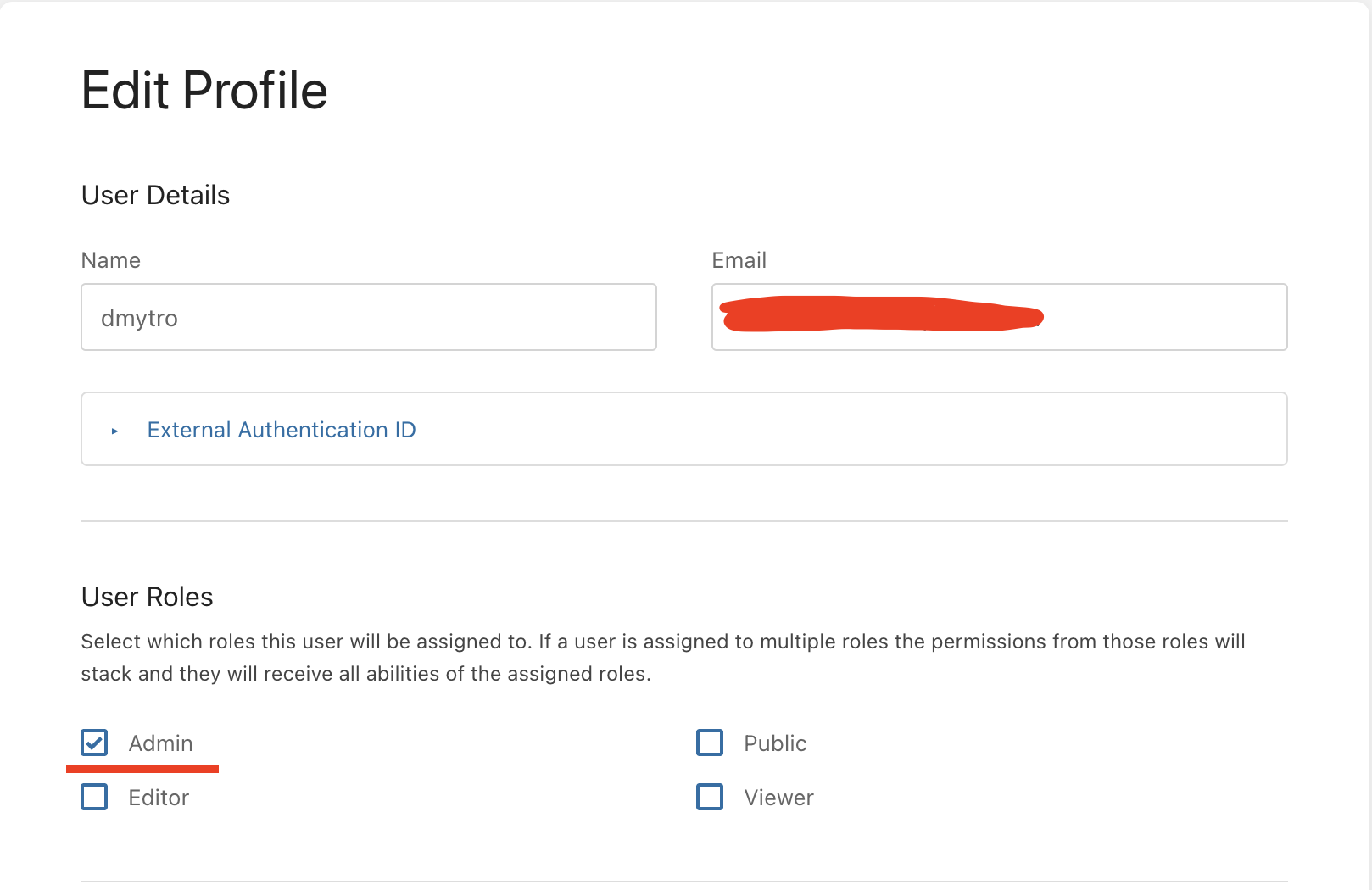
7\. Select Admin role and click **Save**.
[](https://wiki.devsecopsinc.io/uploads/images/gallery/2025-03/bookstack-edit-profile.png "bookstack-edit-profile.png")
##### **Step 6: Switch Back to OIDC Authentication**
Now that user registration is enabled, repeat **Step 2**, but this time set the authentication method back to **OIDC**:
```bash
nano bookstack/.env
AUTH_METHOD="oidc" # uncomment or edit exist line
```
Save the file and restart BookStack again:
```bash
docker-compose --env-file bookstack/.env -f bookstack/docker-compose.yml up -d
[+] Running 1/1
✔ Container bookstack Started
```
**⚠ Important Notice!** Don’t worry! If something goes wrong, the **Auto Scaling Group** will detect the issue and recreate the instance with default settings.