# How to Update Stack Parameters Using a Change Set
#### **What is a Change Set for?**
To modify stack parameters, you need to use a **Change Set**. This feature allows us to update our stack **safely and predictably**. In case of failure, it will **automatically roll back** to the last stable version, ensuring system stability.
For example, if you want to **enable RDS Auto Backups**, instead of manually changing settings in the RDS console, you can use a **Change Set**, which in 99% of cases will protect you from potential misconfigurations.
#### **Steps to Update Parameters Using a Change Set:**
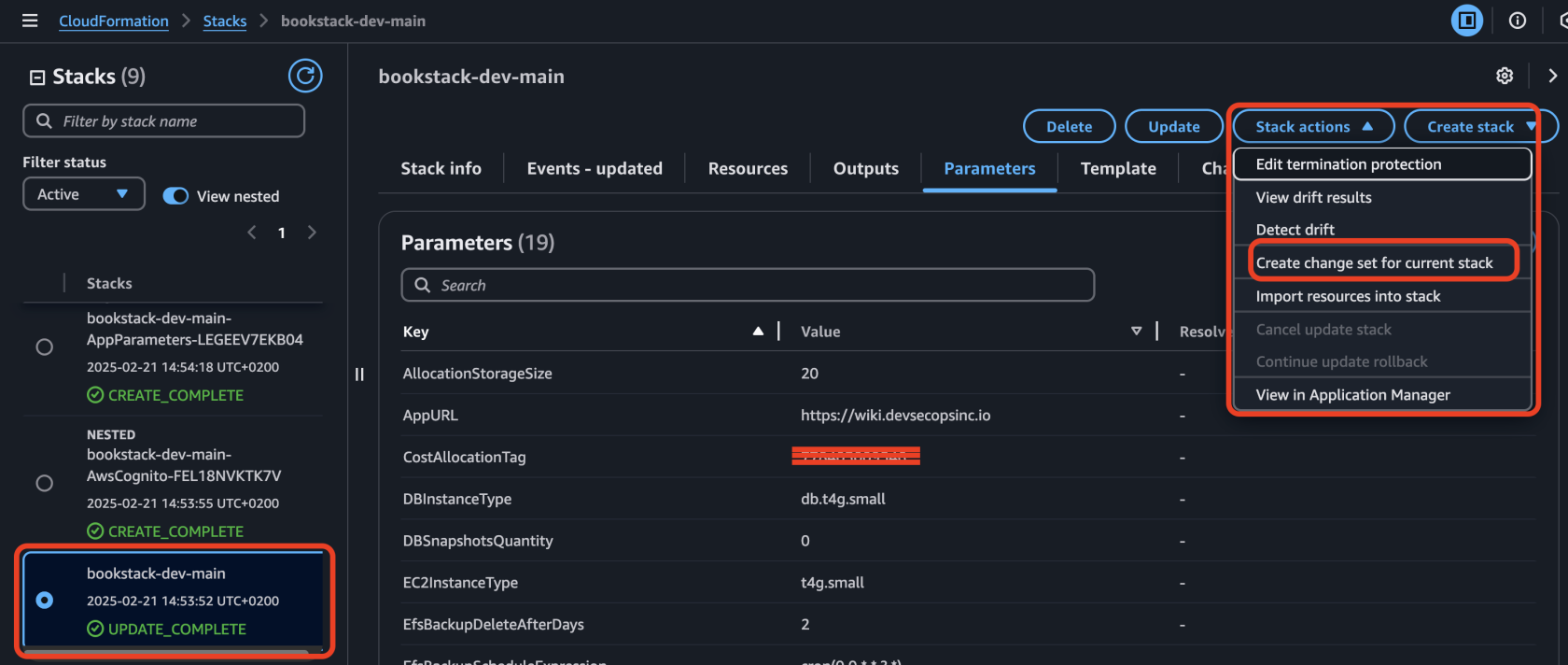
##### 1️⃣ **Select the main stack**
from the list of stacks in the AWS CloudFormation console. The **Stack actions** option in the upper right corner will become active. Click on it and select **“Create change set for current stack”** from the dropdown menu.
[](https://wiki.devsecopsinc.io/uploads/images/gallery/2025-03/change-set-1.png "change-set-1.png")
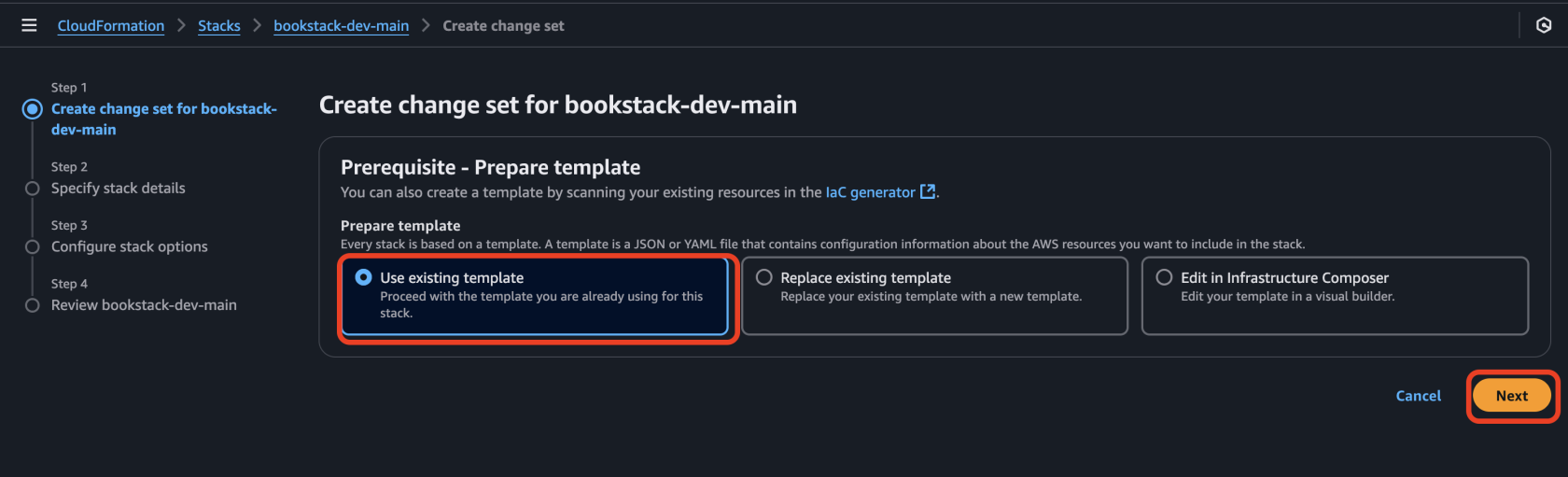
##### 2️⃣ In the new window, **Create Change Set**
leave all settings **as they are** and click **Next**.
[](https://wiki.devsecopsinc.io/uploads/images/gallery/2025-03/change-set-2.png "change-set-2.png")
##### 3️⃣ The next steps are **similar to creating a new stack**,
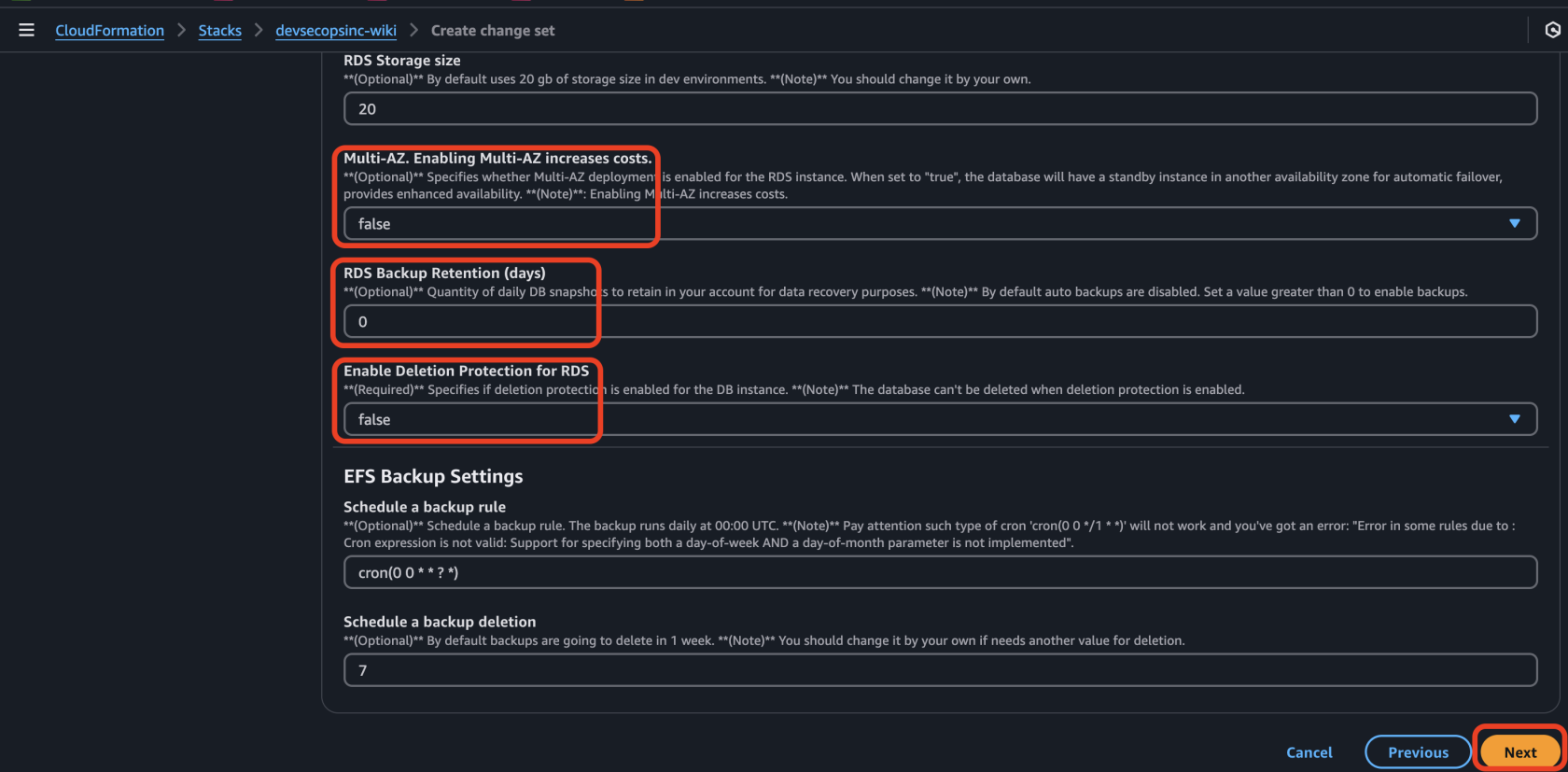
but this time, on the **“Specify stack details”** step, select the parameters you want to modify.
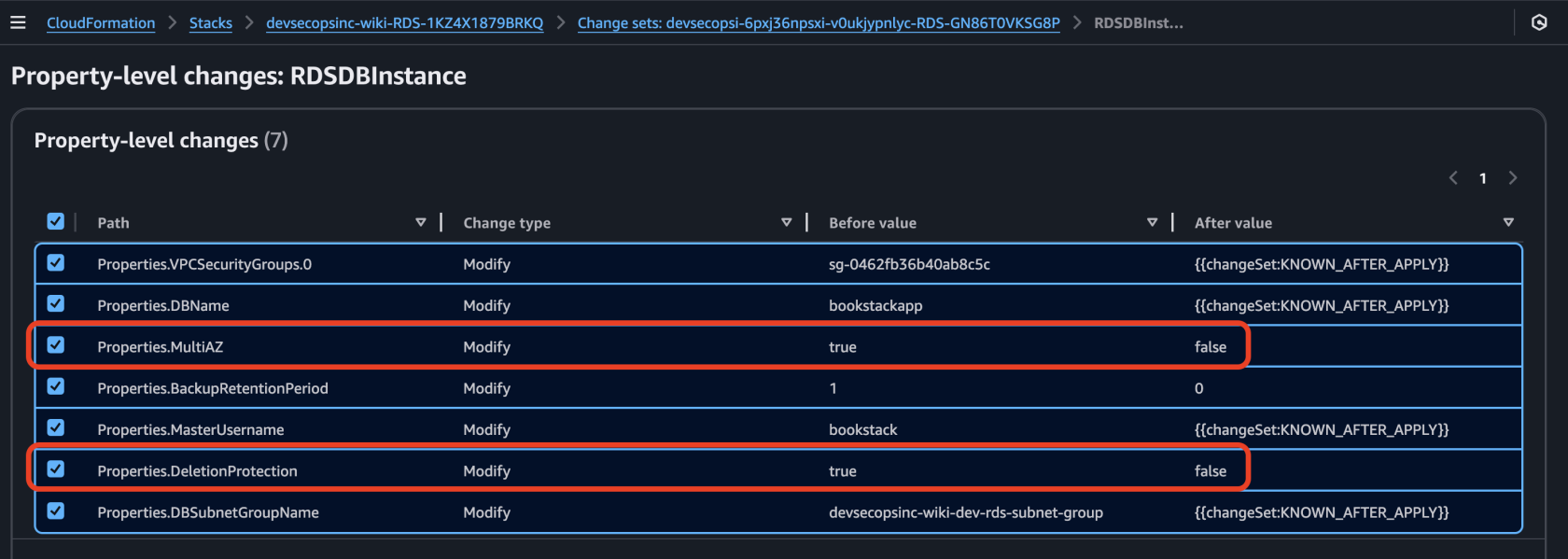
• **Example:** If you want to disable **Multi-AZ** and turn off **Deletion Protection**, set both parameters to **False.** For Disable **RDS** **AutoBackups** set value 0, then click **Next**.
[](https://wiki.devsecopsinc.io/uploads/images/gallery/2025-03/multi-az-false-1.png "multi-az-false-1.png")
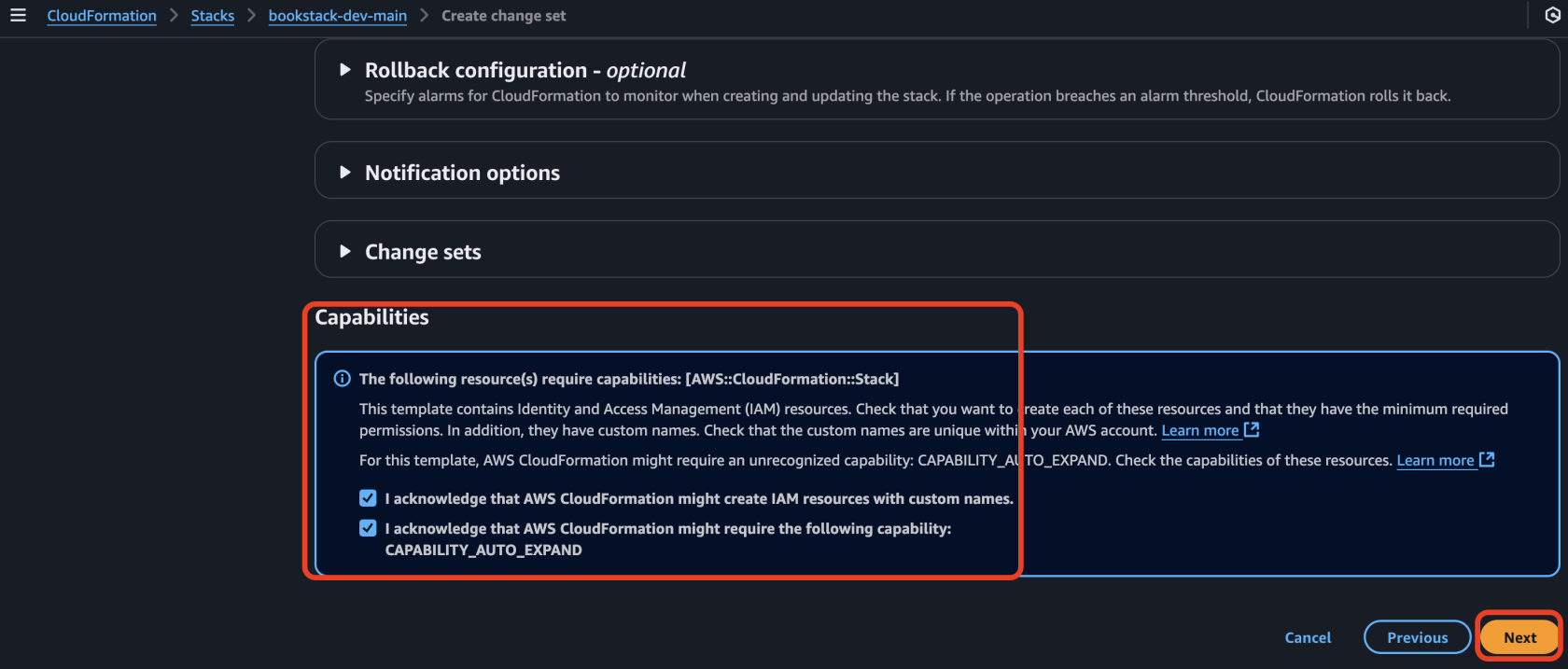
##### 4️⃣ On the **“Configure stack options”** step,
check the required **Capabilities** checkboxes and click **Next**.
[](https://wiki.devsecopsinc.io/uploads/images/gallery/2025-03/change-set-3.png "change-set-3.png")
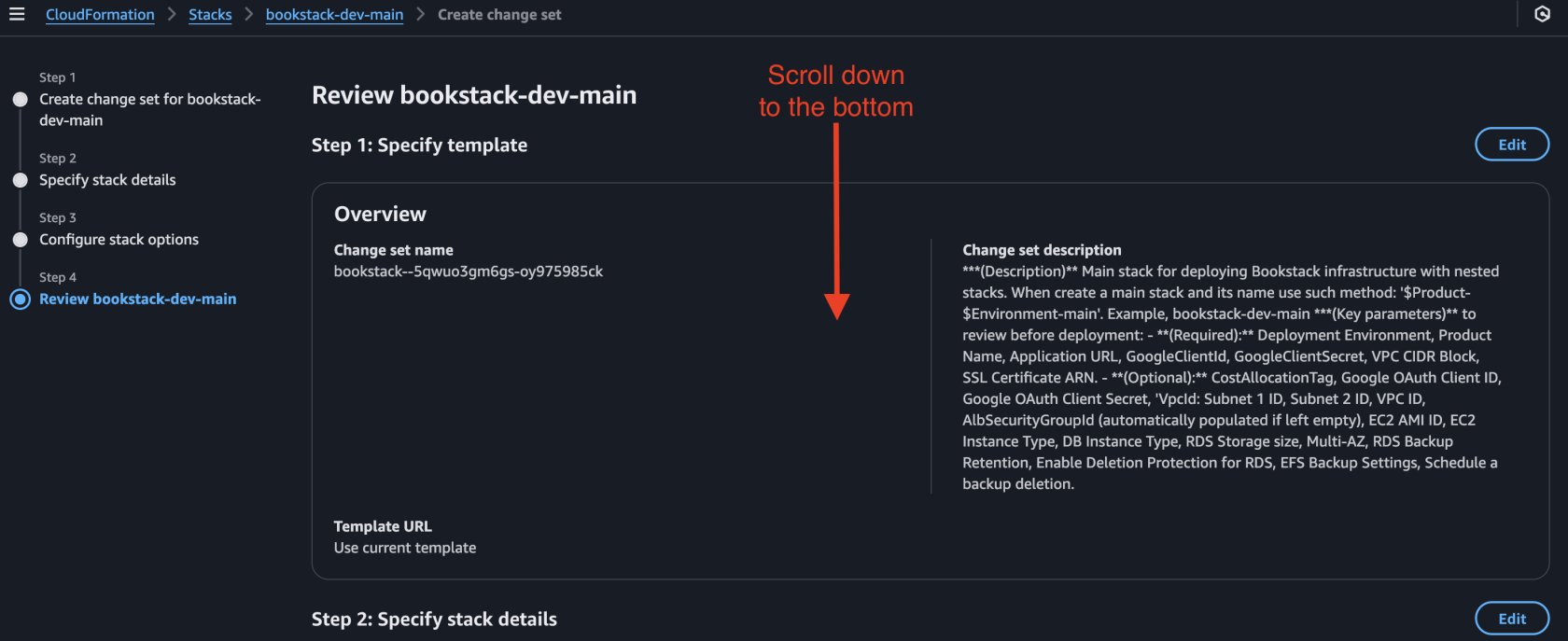
##### 5️⃣ On the final **“Review”** step,
you will see the new configuration. Scroll to the bottom and click **Submit**.
[](https://wiki.devsecopsinc.io/uploads/images/gallery/2025-03/change-set-4-1.png "change-set-4-1.png")
[](https://wiki.devsecopsinc.io/uploads/images/gallery/2025-03/change-set-4-2.png "change-set-4-2.png")
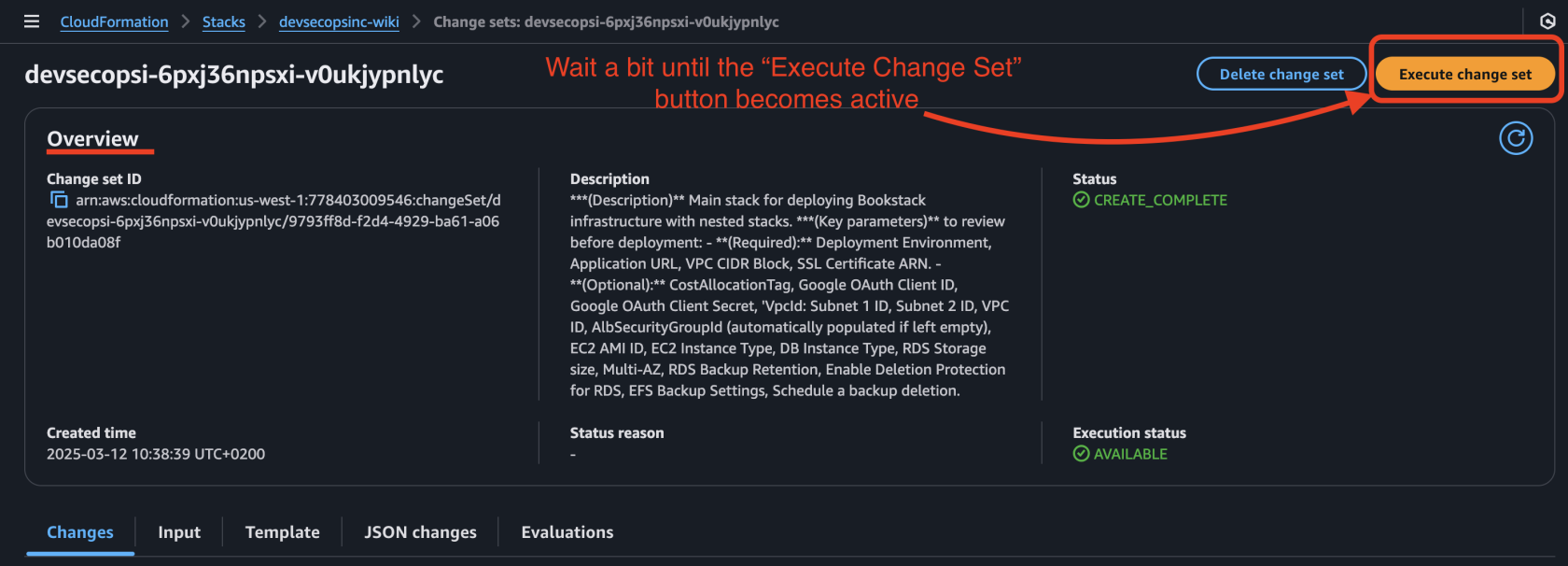
##### 6️⃣ CloudFormation will now **prepare the changes**
and generate an **Overview** of which resources will be updated. Wait a bit until the **“Execute Change Set”** button becomes active.
[](https://wiki.devsecopsinc.io/uploads/images/gallery/2025-03/multi-az-false-5.png "multi-az-false-5.png")
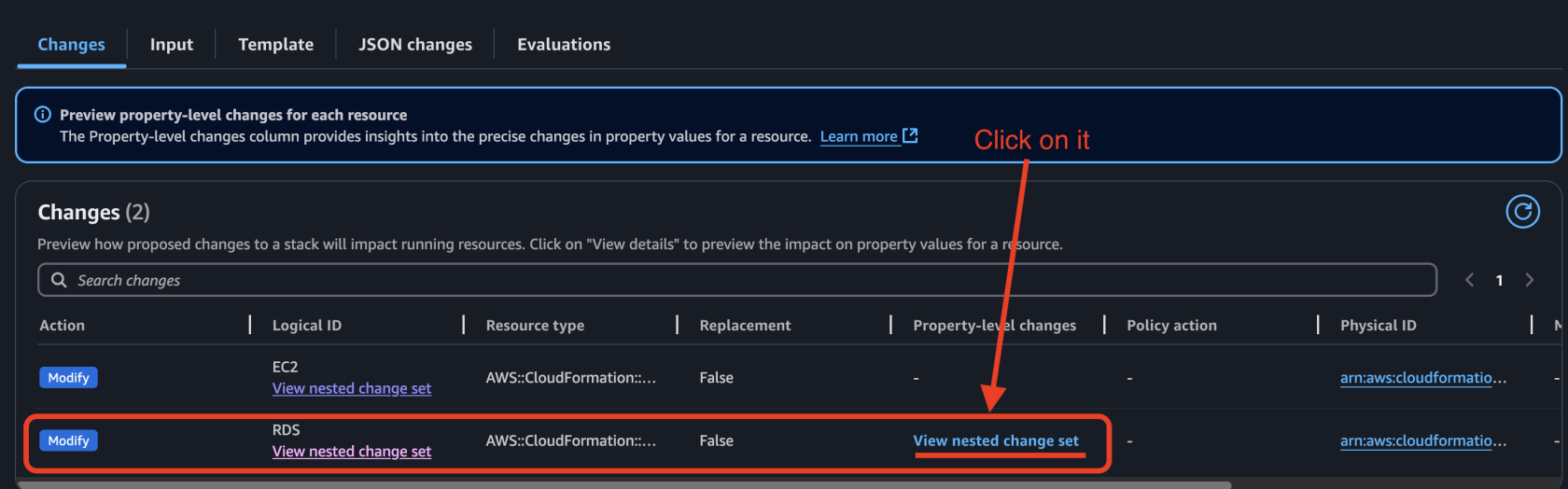
• Here, you can review the **planned changes** before applying them.
[](https://wiki.devsecopsinc.io/uploads/images/gallery/2025-03/multi-az-false-3.png "multi-az-false-3.png")
[](https://wiki.devsecopsinc.io/uploads/images/gallery/2025-03/multi-az-false-2.png "multi-az-false-2.png")
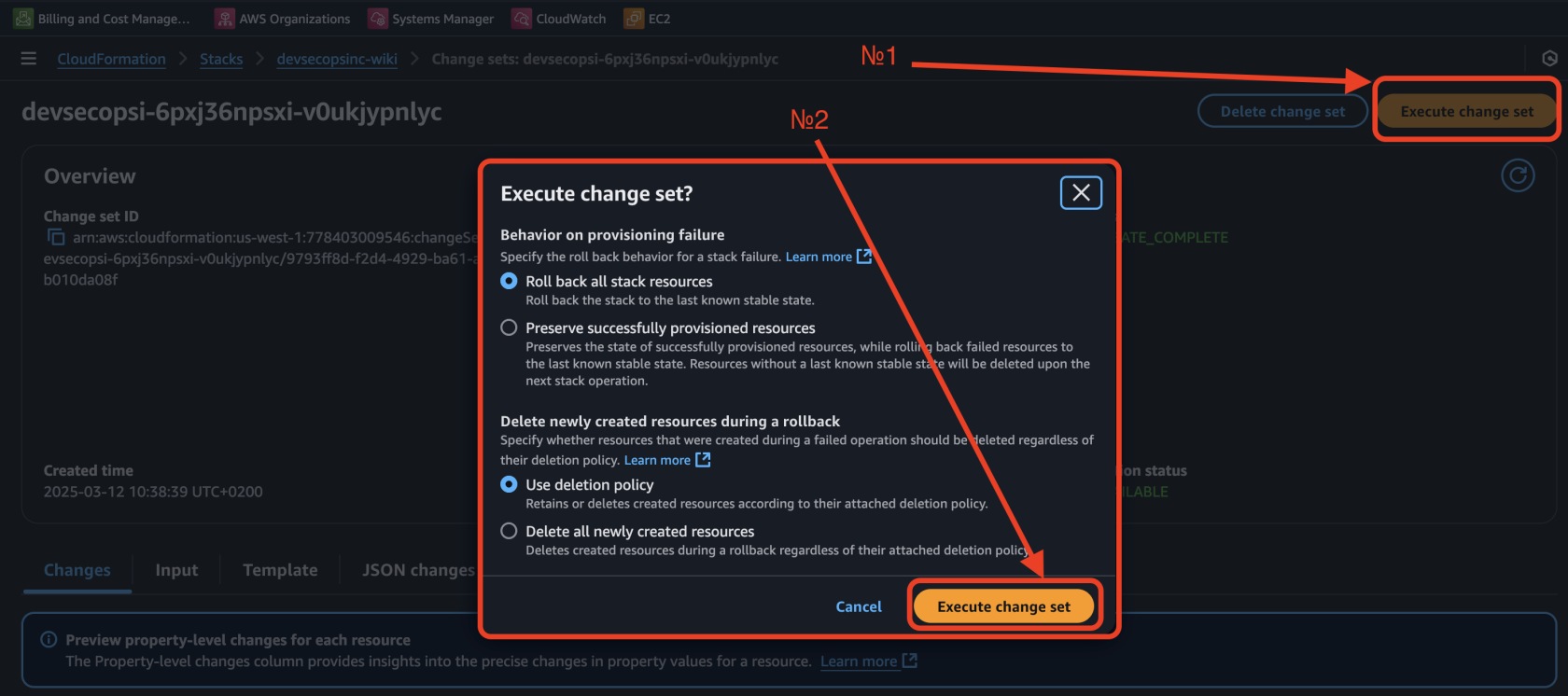
If everything looks correct, click **“Execute Change Set”** (№1). In the pop-up window, leave all settings as default and click again **“Execute Change Set”** (№2).
[](https://wiki.devsecopsinc.io/uploads/images/gallery/2025-03/multi-az-false-4.png "multi-az-false-4.png")
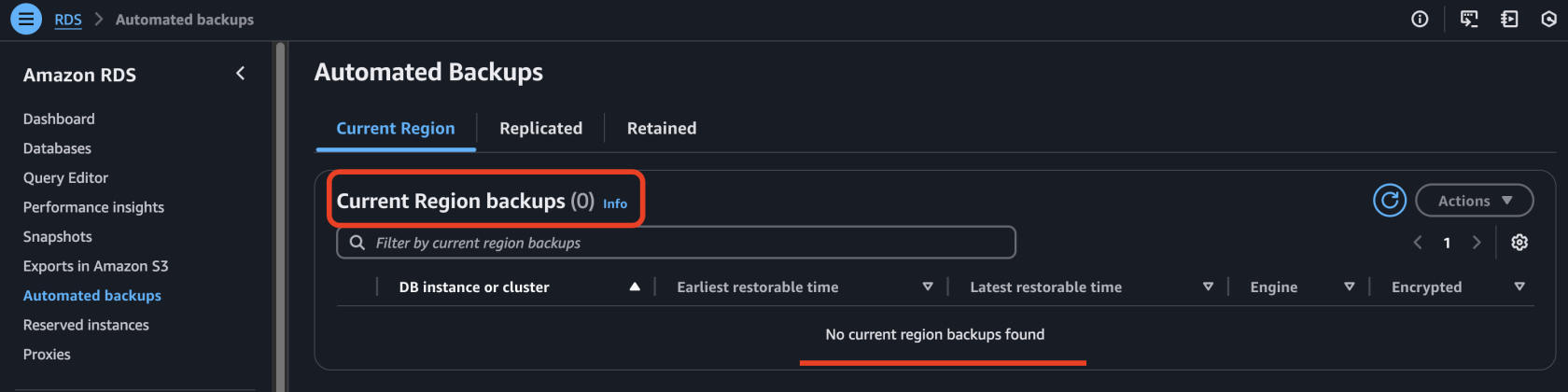
• While deploying new parameters, you can go to RDS and monitor the changes in the real-time. As you can see, all auto backups are gone.
[](https://wiki.devsecopsinc.io/uploads/images/gallery/2025-03/multi-az-false-7.png "multi-az-false-7.png")
##### 7️⃣ **Wait for CloudFormation to apply the changes.**
Once completed, your stack will be successfully updated with the new configuration. 🚀